

Laptop
5 Windows 10 tricks...

Uroš Vogrinec

(Which will make it easier for you to use it...)
Hey,
Since we met here, I assume you're interested in how you can simplify your daily computer use.
Maybe you also use the Windows operating system and want to learn something useful and useful...
Or maybe you're just a "matra firbec", whose tricks are those that most Windows users practically don't even know.
And that's exactly why I decided to reveal to you today...
5 insanely useful and handy tricks that make using your computer much easier...
Before we continue, let me briefly introduce myself...
My name is Uroš and I'm the co-owner of the Kron technical service, where we've managed to repair more than 75,000 devices in the last 30 years of operation.
Don't worry - I'm not telling you this to brag, I want to tell you something else...
As someone who spends a lot of time in front of a computer, I'm well aware that every trick in using a computer comes in handy - especially if it saves you valuable time.
And it just didn't seem fair to me not to share them with you.
So let's take a look at some Windows tricks you simply must know for a better user experience...
Method #1: Minimize all windows at once except the active one...
If you often find yourself having a bunch of different windows open at once, there's a really simple trick that will help you minimize them in just two seconds...
The best part is that your active window stays open.
How do you do this?
Click and hold the title bar of the window you want to keep open. Then use your mouse to move the window back and forth - sort of like shaking it.
After a few quick shakes, all the other windows will be minimized, leaving only the one that was "shaken".
Interesting, isn't it?
Method #2: Discover the "mysterious" start menu...
You probably already know that to access the Start menu, you have to click on the Windows icon, which is usually located in the lower left corner of the screen or on the keyboard.
What many people don't know is that Windows 10 includes a second, slightly less well-known Start menu.

The main function of this stealthy duplicate is to make it much easier for you to access the most important Windows functions - the Control Panel, Task Manager, or Command Prompt.
You can get to it in two different ways:
- Press Windows key + X,
- Right-click on the Windows icon (Start button).
Method #3: Enter an important event without opening the calendar...
The latest Windows 10 update allows you to quickly and easily add important events to your calendar - without having to search for them on your computer and open them.
Here's how to do it:
1. Click on the time and date in the toolbar,
2. Click on the date you want to set a reminder for,
3. Enter the event name, time and location,
4.Click "save".
And voila, the event is recorded in your calendar : )
Method #4: Take a screenshot or a picture of the screen...
I know - it's a very basic thing, but it's interesting how quickly we can forget about it if we don't use it regularly.
There are at least 8 different ways to take a screenshot on Windows 10.
If you simply want to capture the current screen and save it, the easiest way is to press the Windows + Print screen buttons on your keyboard. In this case, the image will be saved directly to a folder on your hard drive called Pictures.
If you only want to capture a part of your screen, then press the Windows + Shift + S buttons. This will open a special application that allows you to crop your screenshot.
Method #5: Say goodbye to ads in the Start menu...
When you use Windows with the default settings, you sometimes notice random apps on the right side of this Start menu. Microsoft calls these “suggestions,” but they’re actually ads from the Windows Store for apps you can buy for your computer.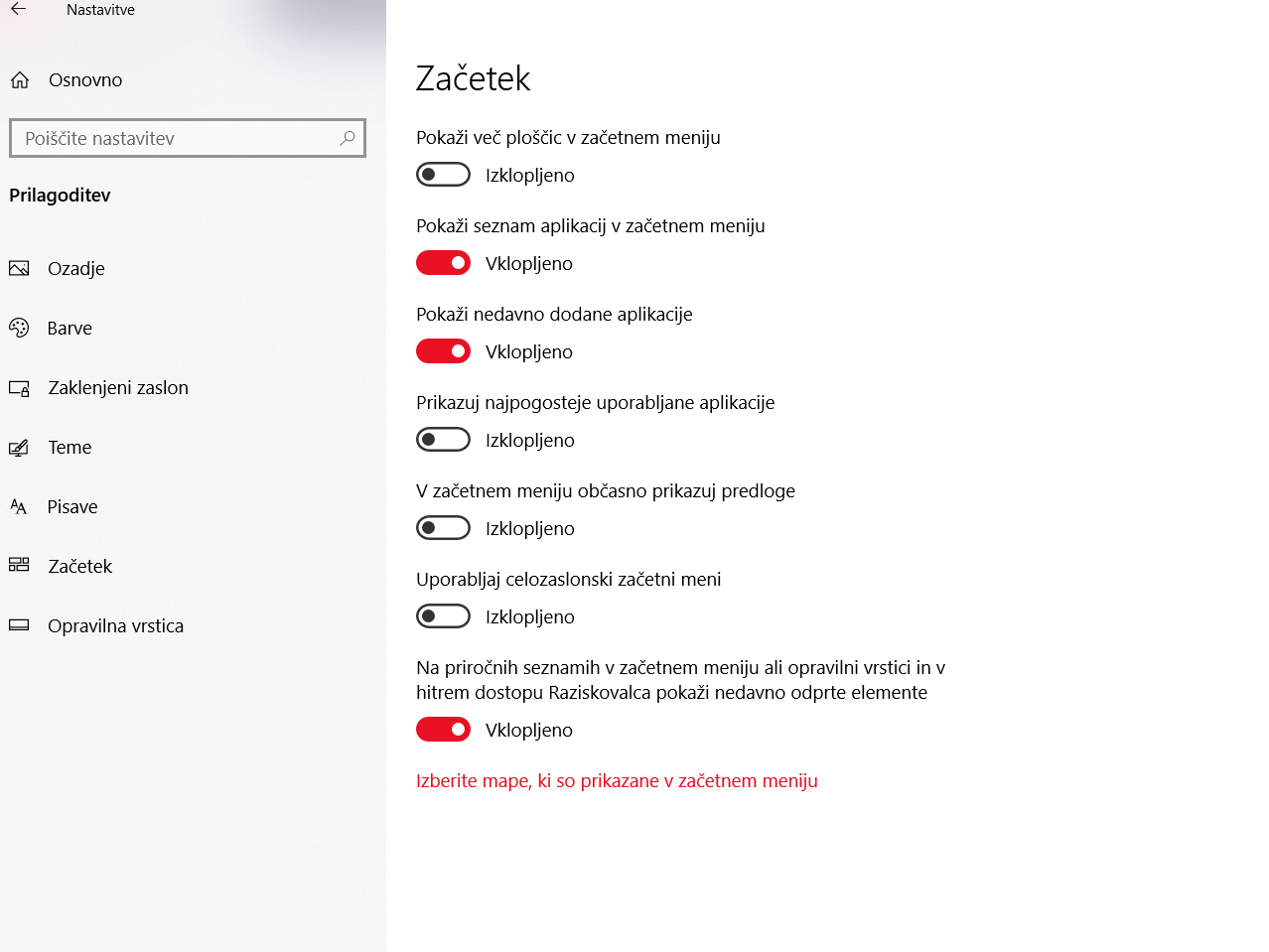
If you want to get rid of it all, go to Settings > Personalization > Start.
Simply turn off the setting called “Occasionally show suggestions in the Start menu”.
And that’s how you can finally say goodbye to annoying ads : )
In short…
These were the 5 most useful tricks for Windows that I use regularly myself.
If you liked this article, then you might also like the article titled 7 interesting facts about computers that you probably don’t know yet...
On the other side of the link, you can find out interesting historical facts about computers that can broaden your horizons.
If you’re not interested in such things, of course, there’s nothing wrong with that.
However, I believe that you liked this article and that you now know some more useful tricks.
See you next time,
Uroš Vogrinec, owner of Kron IT service
Our Articles

What to do if your phone falls into water?
(Most people do the opposite...)First of all, a warm greeting.Considering that you are on this page,...
These are 9 bizarre facts about mobile phones that only a few people know...
These are 9 bizarre facts about mobile phones that only a few people know...Yes...Not long ago, smar...
7 interesting facts about computers that you probably didn't know...
7 interesting facts about computers that you probably didn't know...Hey!In principle, a computer is...Do you have questions